
Using Claude Code with Your Awesomate Account
This guide walks you through connecting Claude Code to your Awesomate account so you can build and edit websites and web apps on your Awesomate hosting, and build, review, and fix the workflows in your n8n account — all by chatting with Claude on your own computer. It is based on our live webinar from 20 August and is suitable for every Awesomate plan, with some building features requiring Support Plus or above.
Claude the Application vs Claude the Model
Before starting, it helps to understand one distinction that trips a lot of people up. Claude is both an application and a family of large language models.
- The Claude application is what you download onto your computer. Subscribing to Claude gives you access to their suite of services — Claude Code, Claude Chat, Claude Design, and Claude Cowork — just like you would subscribe to Slack or Ontraport.
- The Claude models (Sonnet, Opus, and Fable) are the large language models themselves. You can also use these inside your n8n automations via OpenRouter — that is a separate thing from the Claude application, and you do not need a Claude subscription for it.
This guide is about the Claude Code application. A paid Claude subscription is a prerequisite.
Prerequisites
- A Claude Pro subscription (around $34 AUD a month if billed monthly — when signing up, make sure the billing toggle is set to monthly, as the checkout tends to default back to annual)
- Node.js installed on your computer — this powers the connector
- Git installed on your computer (available for both Windows and Mac)
- The Claude Code desktop app (you can also use VS Code or the terminal, but the desktop app is the easiest place to start)
- An active Awesomate account — every plan can connect; building sites, apps, and automations requires Support Plus or above
Fair warning: the setup is the technical part. Each step might take you 5 to 10 minutes depending on your computer. If you get stuck, book a one-on-one session with us — go to Sessions in your Awesomate hub and pick a time. Once the setup is done, actually using Claude is as simple as chatting with it.
Step 1: Install Node.js and Git
Go to nodejs.org and download the installer for your system (there is a Mac installer and a Windows installer — or you can use the terminal commands shown on the site). Then install Git for your platform. These two are the core prerequisites that let the Awesomate connector run on your computer.
Step 2: Subscribe to Claude and Install Claude Code
Go to claude.com, choose the Pro plan, and remember to select monthly billing. Then download and install the Claude Code app. If you are heavily using Claude Code — building applications or doing development work daily — the Max plan may end up cheaper because of the extra usage it includes. For small edits to your website or workflows, Pro is fine.
Step 3: Create a Project Folder
Claude Code works with files on your computer, so it needs a folder to work from. Create a folder such as Projects, and inside it a folder for what you are working on. When you open Claude Code, point it at that folder. Any files Claude creates or edits stay in that one place, and when you start a new project you simply switch folders.
Step 4: Generate Your Setup Code in the Awesomate Hub
Log in to your Awesomate hub and open the Claude tab at the top of the window. Click Generate Setup Code. This creates a one-time security code that:
- lasts for 10 minutes only
- is copied to your clipboard automatically
Step 5: Paste the Setup Command into Claude Code
Go back to Claude Code, paste the command you copied, and hit enter. This runs a bootstrap — a quick way of downloading the Awesomate connection from our servers — which installs the Awesomate MCP server and its skills onto your computer. When it finishes, it will confirm the connection and tell you:
- which Awesomate plan you are on
- how long your token is valid for (tokens last 3 months, then you renew with a fresh setup code)
- the skills that were installed: app builder, credentials, database, GitHub, hosting, n8n, SEO, and support
- the version of the MCP server (we keep updating it as we add skills and tools)
If you are wondering what an MCP server is: MCP stands for Model Context Protocol, and it is like a standardised electrical plug. Before universal plugs, every country had different plug shapes and you needed an adapter for every device. MCP does the same job for software — any tool that follows the standard can plug into any AI that understands it. We have built an MCP plug for Claude that understands Awesomate, giving Claude around 40 tools it can use in your account.
Step 6: Restart Claude
Close the Claude application completely and reopen it. This reboots the MCP server and loads the new tools. You are now connected and ready to go — try asking "What can you do?" and Claude will list everything available on your account and plan.
If you want to start by building a WordPress site, there is a second setup command in the hub's Claude tab that provisions a WordPress site on your hosting as a starting project. If you only want to work with n8n, you can skip that one.
How the Security Works — and Why You Are Always in Control
You could connect credentials and an n8n MCP server directly on your computer without Awesomate in the middle. The problem: if your computer is lost or stolen, you have no way to cut that access off. Whoever has the machine can edit your workflows and your website.
The Awesomate connection is designed so the hub sits in the middle of every request. Claude never talks to your n8n or your hosting directly — everything routes through the Awesomate hub, which holds the real credentials and enforces every rule:
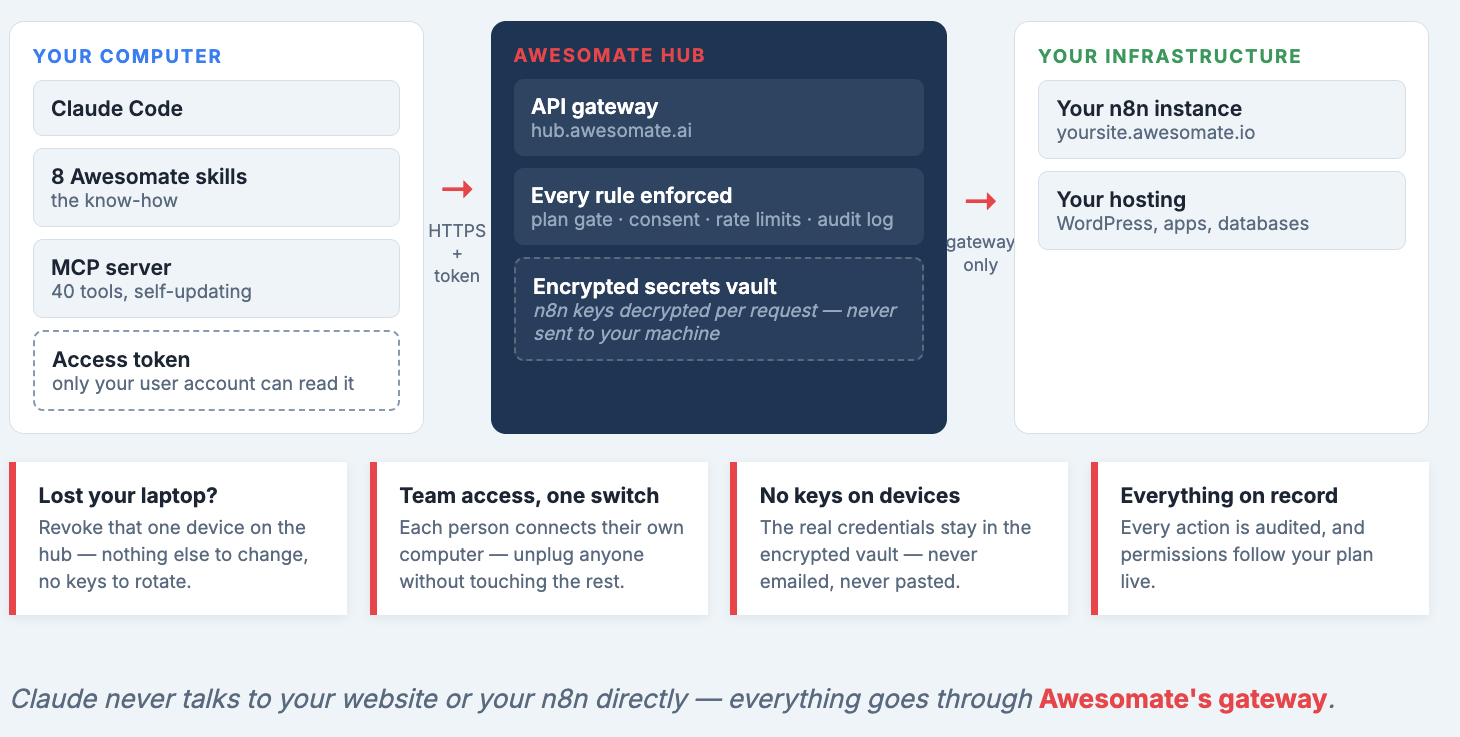
This design gives you several layers of protection:
- Revoke access in one click. In the hub, go to Sites → Security to see every computer that is connected, and click Revoke Access to cut one off instantly. Every connection is re-checked against the hub, so a revoked computer can do nothing. This matters if you lose a laptop, or if a staff member who used Claude leaves your business.
- Magic-link login. The hub has no password to steal — only your email can receive the login link.
- The token handshake. The setup code you generate is one-time and expires in 10 minutes. When your computer redeems it, a freshly minted 90-day token is created and saved only on your machine — we do not store it on our infrastructure, and the original setup code is immediately revoked. The hub keeps only a fingerprint of the token so it can identify it without seeing it.
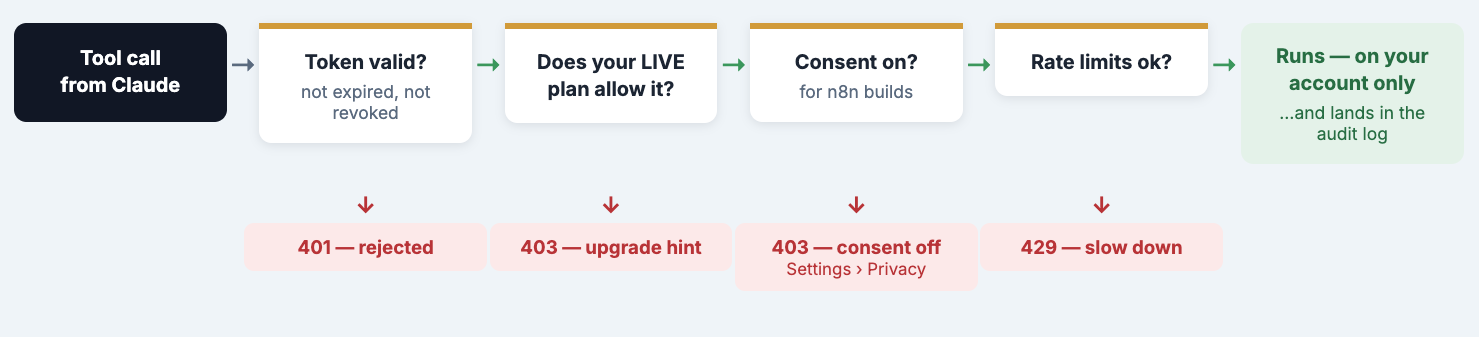
- Every request passes four gates. Is the token still valid? Does your plan allow the action? Have you consented to it? (In your n8n security settings under Privacy there is a Claude Code Access toggle you can switch off at any time.) And finally, rate limits.
- A full audit trail. Everything that happens through the MCP server is logged — every connection and every change, including access by the Awesomate team — so you can always review the history.
Here is the full token handshake, step by step:
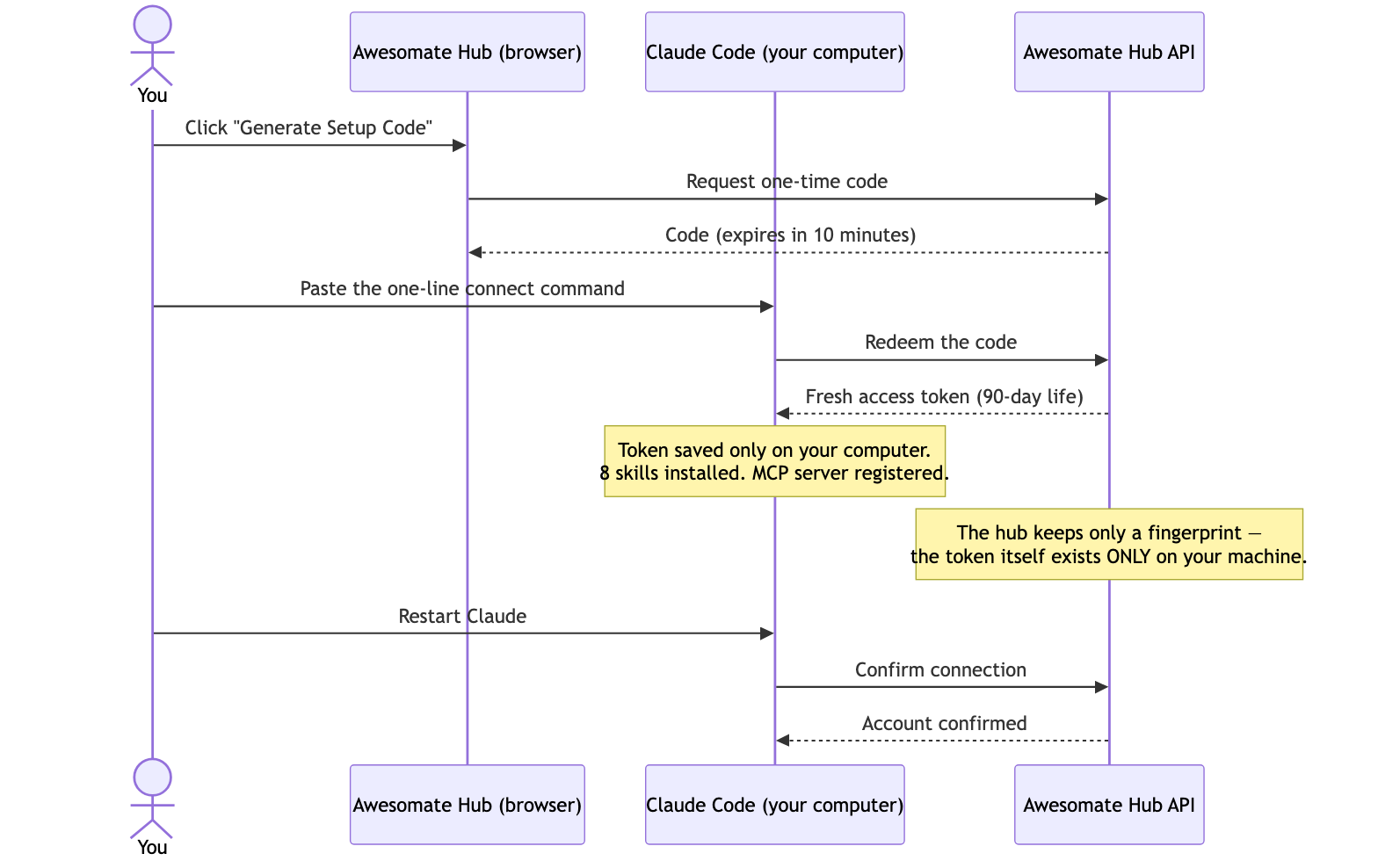
And here are the gates every single request must pass before anything runs on your account:
What You Can Do Once Connected
- Build and ship web apps and sites. Build apps on your hosting (plan limits apply) and deploy them to your own yoursubdomain.awesomate.dev address, or connect a custom domain.
- Edit your WordPress site. Claude knows the sites you host with Awesomate. It can install plugins and themes, make content changes, spin up a staging copy, take snapshots, and roll changes back.
- Work with your n8n automations. Claude can read every workflow, explain what it does, find out why one failed, fix it, or build new ones. It also sees your connected credentials and data tables.
- Build databases. On Support Plus and above we can spin up Postgres databases inside your hosting — essential when an app needs to store shared data.
- Improve your SEO. The SEO skill reviews and updates meta tags, sitemaps, and structured data, and can add an llms.txt file so AI assistants can find and understand your site. Content it writes is checked against the Yoast SEO plugin so both the SEO and readability scores come out green.
- Back up to GitHub. Link a GitHub account and Claude will keep your apps and site work in a repository.
- Manage API keys safely — see the next section.
- Raise support tickets. Just describe the problem and Claude can raise a ticket with our team in the hub on your behalf.
Giving Claude an API Key — the Safe Way
Never paste an API key into the chat. Anything you type in the chat goes to a large language model on the other side of the world, and that key is no longer safe. This is also the single most common mistake people make when vibe coding — live credentials pasted into chats or built into apps where anyone on the web can find them (a problem that caught out Lovable users).
Instead, just tell Claude: "I have a new credential I want to give you for my CRM." Claude will run the Awesomate Credentials skill, which opens a secure window on your own computer. You paste the key there, name it, and save. The key never enters the chat, never goes into your app's code, and never lands in GitHub — but Claude can still use it. Once saved, you can ask things like "Did I have any new contacts today?" against your CRM, or have Claude create the credential inside your n8n account for use in automations.
If you do accidentally paste a key into the chat, Claude will tell you to treat it as exposed and issue a new one, then walk you through storing the replacement safely.
What We Built Live in the Webinar
1. Expanded the website FAQ. A single request — "Expand the FAQ on our site awesomate.co to have fifteen total FAQs" — had Claude check the live site, find the 8 existing questions, write 7 new ones, take a 65 MB snapshot of the site so everything could be rolled back, and publish the new questions live. It took around 8–10 minutes, and most of that time is the safety work: checking the live site, backing it up, and verifying the result. That is deliberate — if a change ever breaks your site, you can just tell Claude to put it back the way it was.
2. Built a working web app from one paragraph. A single request to build the Nokia game Snake — with players entering their name and a shared scoreboard everyone can see — had Claude choose the right approach (a server-side database rather than browser storage, so all players see the same scoreboard), write the app, test it (including on mobile, unprompted), fix its own bugs, and deploy it live at awesomate.co/snake. Total build time was around 20–30 minutes, unattended. The same process applies to anything useful for your business: a landing page with a sign-up form, a calculator, a client portal.
3. Wired a website form into n8n. Taking an existing form-intake workflow, we asked Claude to email each submission and add the contact to a CRM. Claude read the workflow and its executions, asked which CRM to use, and updated the workflow — and if a credential for the CRM does not exist yet, it builds the node anyway and asks you to connect the credential.
Which Model Should You Use?
At the bottom of the Claude Code window you can select the model:
- Opus — the right choice for most work, including building applications and editing workflows.
- Fable — the most advanced model for coding and the strongest on security and best practice, but more than double the price of Opus. Use it when quality matters more than credits, and expect your usage to run out faster.
- Sonnet — only for light content work like copy updates and SEO tweaks. Not recommended for building.
Think of Claude as an employee that costs money per task. Your subscription includes a usage allowance, and heavy building days can go beyond it. As a reference point: on client build days we can go through around $500 of Fable credits in a day — and get something built that would take a team around three weeks. Slower days of small edits stay comfortably inside a Pro subscription.
What Each Plan Includes
Every Awesomate plan can connect Claude and:
- see your hosting, sites, domains, and plan limits
- read every automation, explain it, and debug failures
- ask anything about your account
- raise support tickets
Support Plus and above adds the building tools:
- build and deploy sites and apps
- build, test, and fix automations
- staging sites and snapshots
- Postgres databases for your apps
App building is gated to Support Plus because our team reviews server security settings to make sure nothing harmful lands on the hosting.
Frequently Asked Questions
- Can Claude edit a WordPress site that is not hosted with Awesomate?Yes, but you would need to set that connection up yourself by giving Claude direct access to your site, and you lose the safety layer — no one-click revoke, no automatic snapshots before changes. Moving the site to Awesomate hosting gets you the full secured setup.
- Can I move an app from Lovable, Base44, or Netlify to Awesomate?Yes. Download all your code into one folder on your computer, open that folder in Claude Code, and say you want it hosted on Awesomate. Claude will analyse the app, adapt anything that needs adapting (such as the database), and deploy it. Apps you build on Awesomate can also be downloaded and moved elsewhere — you are never locked in.
- Will migrating my WordPress site to Awesomate hurt my SEO?No. We mirror your exact site and switch the name servers, so Google sees the same site. SEO is only at risk if you later rebuild the site as something completely different and remove the content that was ranking.
- Where is my data hosted?All Awesomate hosting runs in Australian data centres in Sydney.
- Why do changes take several minutes?Live changes involve real safety work: snapshots before anything is touched, security checks, and verification of the result afterwards. Working on an app locally in your folder is much faster — you only pay the "live change" cost when publishing.
- Do I have to be technical to use this?The setup is the technical hurdle; after that it is a conversation. By default, this Claude also translates technical jargon into plain language when talking to you (you can turn that off if you are technical). If it is not for you, a technically minded staff member or VA can run it — and because access is controlled in your hub, you can revoke their connection at any time. Or book a session and we will set it up with you: sessions are included with Pro plan credits, and Support Plus users can buy a session credit for $100.
Need Help?
Book a one-on-one setup session under Sessions in your Awesomate hub, contact us at hello@awesomate.ai, or raise a ticket in your Teamwork Desk portal.